🎁 10 free credits every month (1 credit = 1 processed photo) for accounts registered during this launch offer. No credit card required  ·  50% off your first paid month
Auto Studio
AI-Powered Automotive Photography
Initializing AI Engine...
✨ A Genuinely Free Tier — No Credit Card, Ever
Everything You Need

Professional Vehicle Photography,
Simplified

Auto Studio gives car dealerships a complete AI-powered photo studio in their pocket — consistent angles, stunning backgrounds, and polished listings in minutes, not hours. And with 10 free credits every month, you can try all of it for free.

✓ 10 free credits/month ✓ No credit card required ✓ All platforms included ✓ Built for car dealerships
Core Features

Everything in One Platform

The Processing Settings switches are named here exactly as they appear in the app. 1 credit = 1 processed photo, whichever ones you turn on.

🤖
AI Background Replacement

Removes the forecourt background and places the car on one of 60+ standard backgrounds: studios, showrooms and outdoor scenes. Custom backgrounds are available on Starter and above (limited-time offer).

✨
Car Cleanup

AI cleans dirt, dust and road grime off the car, tidies minor dents, scratches and paint chips, and polishes the paint, alloys and tyres. It works on the exterior only, not interiors. Off by default.

🔖
Replace License Plate

AI replaces the number plate with custom text you choose, such as your dealership name (up to 12 characters). Off by default.

🏷️
Add Logo

Places your dealership logo on every processed image, with the position and size set once in Logo Settings. Off by default, and available once you've uploaded a logo.

🛣️
Keep the floor

Keeps the original ground from your photo (an AI "halfcut") and replaces only what's above it. Good for a clean forecourt or showroom floor. Off by default.

🌗
Soft Shadow

Gives the car a soft shadow on the new floor instead of a hard one. On by default. Not used with Keep the floor, which keeps the car's real shadow.

💎
AI Improvement

Removes reflections from the bodywork and enhances the paint. Off by default.

💡
AI Relighting

Adjusts the lighting on the car to match the new background, so a car shot on a grey day doesn't look out of place in a bright showroom. Off by default.

💾
Auto-save to Gallery

Saves every processed image to your private dealership gallery automatically, ready to download from any device. On by default.

🎯
Guided Camera

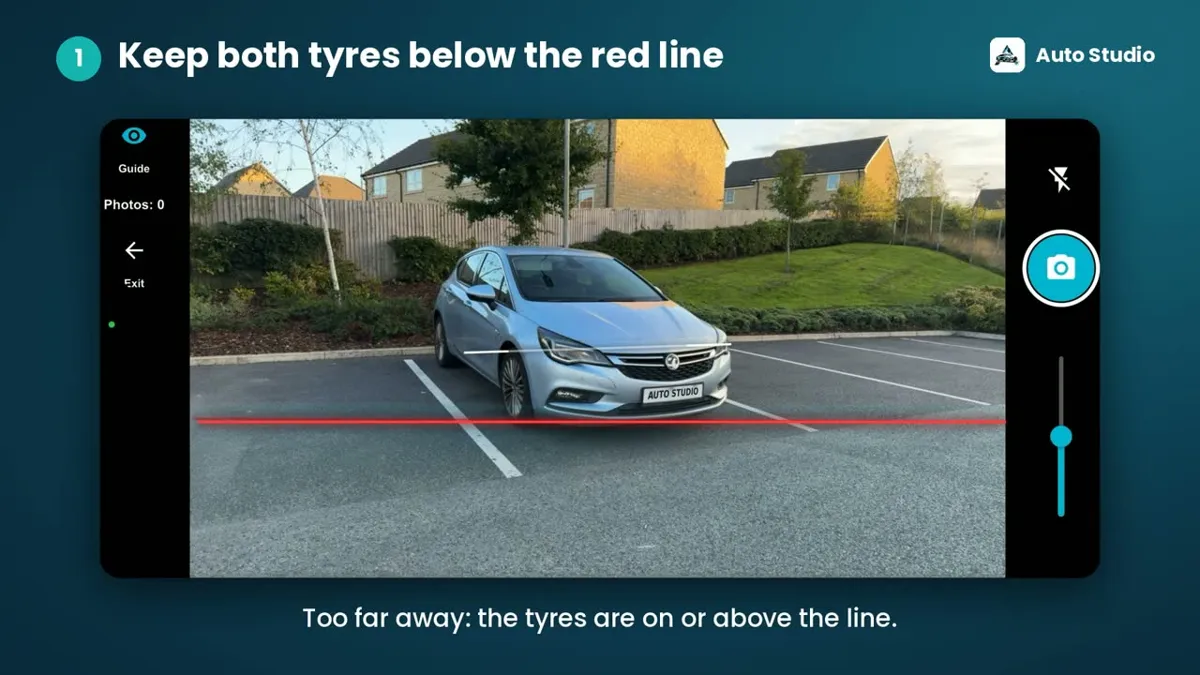
A ghost overlay of the car for each angle, plus a red line to keep both tyres in frame, so anyone on the team gets consistent shots.

📦
Bulk Upload

Drag in several photos at once and process them in one go with the same background and settings.

✍️
AI Listing Descriptions SOON

Vehicle descriptions written by AI for your listings. Shown as "Soon" in the app while we finish it.

📱
Web, iPhone & Android

One account across the web dashboard and the iPhone and Android apps. Capture on the forecourt, review in the office.

📊
Dashboard

See images processed, vehicles, remaining credits and recent activity at a glance.

🔌
API

Send photos straight from your DMS or website to Auto Studio's REST API. Available on Business plans and above.

How to Use

How to use each feature

Short steps for each feature. For the full walkthrough, read how to use Auto Studio.
1. Take photos with the guided camera

  1. Open the camera in the Auto Studio app and pick an angle.
  2. Line the car up with the ghost overlay.
  3. Keep the points where both tyres touch the ground below the red line, then take the shot. More in keeping both tyres in frame.
Auto Studio camera screen with a car lined up and a red line near the bottom of the frame, captioned keep both tyres below the red line
The guided camera: keep both tyres below the red line.

2. Upload one photo or many (bulk upload)

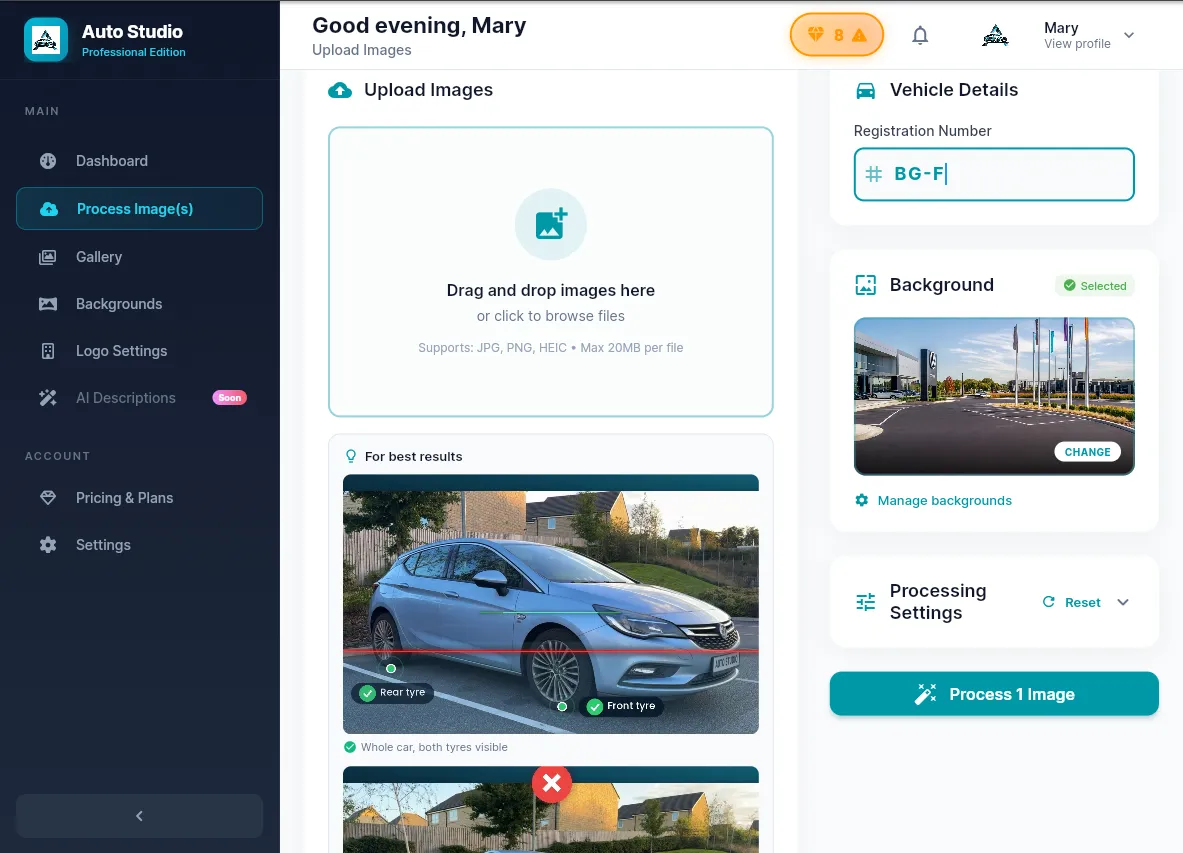
  1. Go to Process Image(s).
  2. Drag and drop your photos into Upload Images, or click to browse. JPG, PNG and HEIC are supported, up to 20MB each. Add as many as you like to process them in one go.
  3. Type the Registration Number under Vehicle Details so the photos are grouped by vehicle.
Process Image(s) screen showing the Upload Images area, Vehicle Details registration field, the selected Background card and the collapsed Processing Settings panel
The upload screen: photos on the left, registration, background and Processing Settings on the right.

3. Choose a background

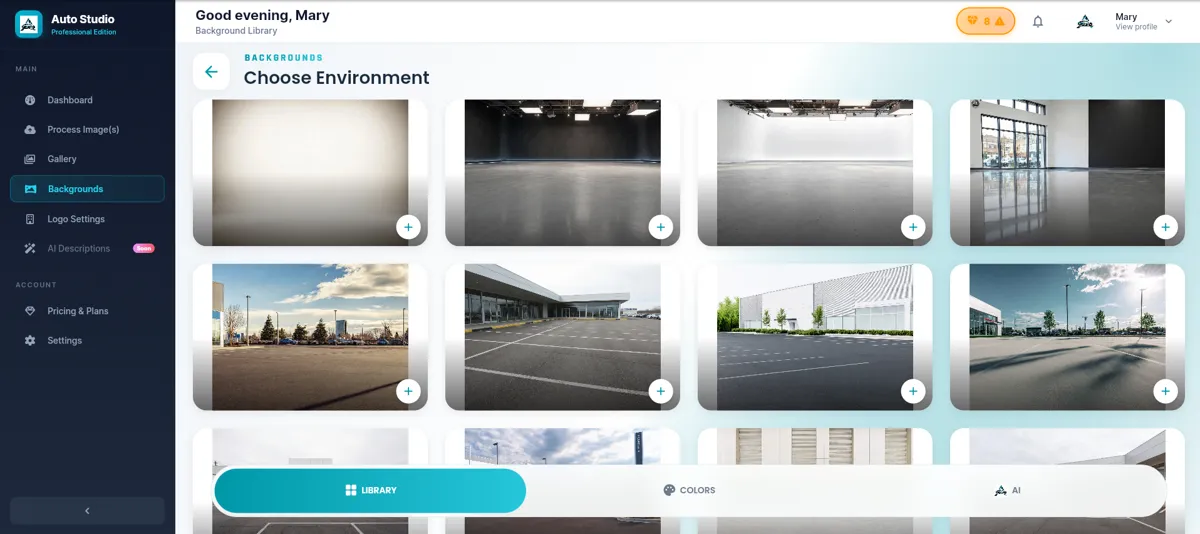
  1. On the upload screen, press Change on the Background card, or open Backgrounds from the menu.
  2. Pick a background from the Library (60+ standard backgrounds) or the Colors and AI tabs. On Starter and above you can also use custom backgrounds (limited-time offer).
  3. Your choice is remembered, so use the same one for every car to keep your stock consistent.
Choose Environment screen with a grid of studio, showroom and outdoor backgrounds and Library, Colors and AI tabs
The Backgrounds page.

4. Turn on the options you want in Processing Settings

On the upload screen, Processing Settings starts collapsed: tap the Processing Settings heading (or the arrow on the right) to expand it and see all eight switches. Your choices are saved to your account for next time, so they may differ from the defaults; Reset puts them back (only Soft Shadow and Auto-save to Gallery on). Each photo costs 1 credit (1 credit = 1 processed photo) whichever switches are on.
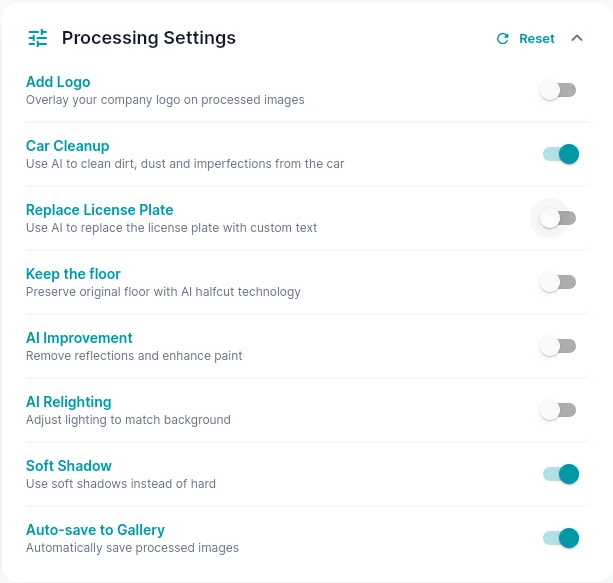
Expanded Processing Settings panel with eight switches: Add Logo, Car Cleanup, Replace License Plate, Keep the floor, AI Improvement, AI Relighting, Soft Shadow and Auto-save to Gallery, plus a Reset button
The Processing Settings panel, expanded. In this example Car Cleanup has been switched on; a new account starts with only Soft Shadow and Auto-save to Gallery on.
  1. Car Cleanup (off by default): turn on to clean dirt and grime, tidy minor dents, scratches and chips, and polish paint, alloys and tyres. Interiors aren't changed, so tidy the cabin yourself.
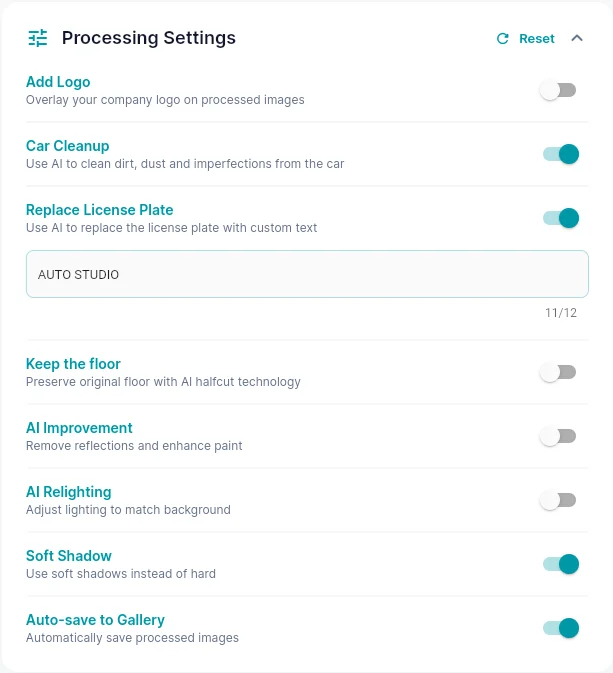
  2. Replace License Plate: turn on, then type the text for the plate (up to 12 characters, for example your dealership name). If you leave the text empty, plates stay exactly as photographed.
  3. Add Logo: first upload your logo in Logo Settings and choose its position (top left, centre or right) and size. Then switch on Add Logo.
  4. Keep the floor: turn on when the ground in your photo is clean, like a tidy forecourt or showroom floor. Leave it off if the ground is cluttered.
  5. Soft Shadow: on by default for a soft shadow under the car; turn off for a harder shadow. It's hidden while Keep the floor is on, because the car's real shadow is kept.
  6. AI Improvement: turn on to remove reflections and enhance the paint.
  7. AI Relighting: turn on to match the car's lighting to the background, useful for photos taken on grey days or in harsh sun.
  8. Auto-save to Gallery: on by default, so every finished image goes straight to your gallery.
Replace License Plate switched on, with the plate text box showing AUTO STUDIO and a counter reading 11/12
Replace License Plate on, with the plate text typed in (11 of 12 characters used).
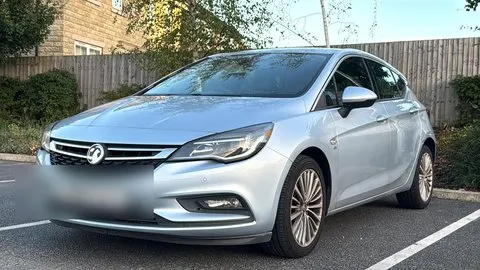
Before: phone photo of a silver hatchback in a car park
Before
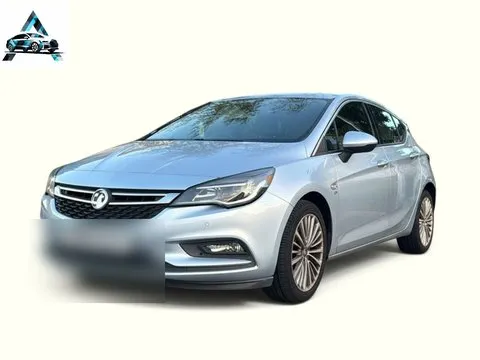
After: the same hatchback on a clean background with the dealer logo in the top corner
After, with Add Logo on

5. Process and download from the Gallery

  1. Press Process. The button shows how many images will be processed and uses 1 credit per image.
  2. Open Gallery to check each image, then download it for your listings.
Finished image of a silver hatchback in a showroom with the dealer logo on the wall
A finished image with the dealer logo.

6. Use it on the web, iPhone and Android

Sign in with the same account on the web dashboard and the iPhone and Android apps. Take photos on your phone and manage them from the office. The Dashboard shows images processed, vehicles, credits and recent activity.
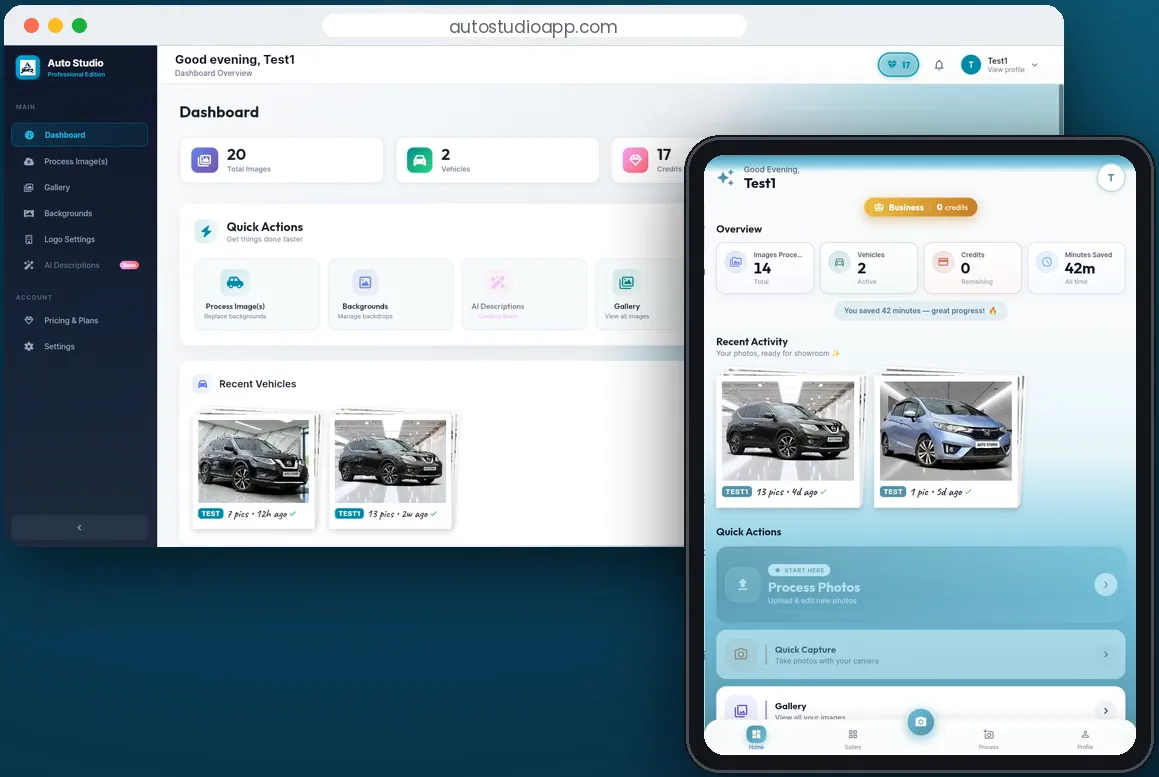
Auto Studio dashboard shown on a laptop browser and on a mobile device
The same account on the web and in the app.

7. Connect your systems with the API

On Business plans and above, generate a key under Profile → API Keys and send photos to the REST API from your DMS or website. See the API docs.

8. AI listing descriptions (coming soon)

AI Descriptions appears in the menu marked "Soon". We'll update this guide when it's ready.

Ghost Overlay Guides

Perfect Angles.
Every Single Shot.

Consistent vehicle angles are the foundation of professional automotive photography. Auto Studio's Ghost Overlay system projects a translucent vehicle silhouette directly onto your camera screen — so any member of staff can nail the shot, every time.

No photography experience needed. No retakes. Just align and shoot.

  • Front — straight-on bonnet view
  • Rear — straight-on boot view
  • Front Left 3/4 — classic three-quarter angle
  • Front Right 3/4 — mirrored showroom angle
  • Rear Left 3/4 — rear perspective shot
  • Rear Right 3/4 — mirrored rear angle
6 Standardised angles
0 Photography skills needed
100% Consistent every time
Ghost overlay guide — Front angle

👻 Ghost Overlay — Front Angle View

# Automate your workflow
curl -X POST \
https://...cloudfunctions.net/processImageApi \
-H "X-API-Key: as_live_xxxx" \
-H "Content-Type: application/json" \
-d '{"imageUrl":"https://your-cdn.com/car.jpg","backgroundId":"studio_white"}'

{ "processedImageUrl": "https://firebasestorage.googleapis.com/...", "creditsUsed": 1 }
Developer API

Automate at scale with our REST API

Available on Business plans and above. Integrate Auto Studio directly into your DMS, website or workflow. One API call turns a raw photo into a showroom-ready image.

View API Docs →
Get Started Today

Get Started Free

No photography skills. No setup fees. No commitment.
Professional vehicle imagery from day one — 10 free credits every month.

10 free credits/month  ·  50% off first month  ·  Cancel anytime  ·  No credit card required